 Storemast
Guide
App Store screenshot sizes and requirements
By the Storemast team · Last updated
TL;DR
For iPhone, upload one set at the 6.9-inch size (1320 × 2868 or 1290 × 2796 portrait); the 6.5-inch size (1242 × 2688 or 1284 × 2778) is only needed if you don't provide 6.9-inch. If the app runs on iPad, add a 13-inch set (2064 × 2752 or 2048 × 2732). Each localization takes 1 to 10 screenshots per device size, as PNG or JPEG without transparency. Smaller devices use scaled-down copies unless you upload their own. Apple changes this list as new devices ship, so confirm in App Store Connect's Screenshot specifications before you export.
Screenshots are the first thing most people see of your app: in search results they often decide whether anyone taps through at all. They're also one of the fiddliest parts of a submission, because App Store Connect wants exact pixel sizes, and the list of sizes moves every time Apple ships a new iPhone. This guide covers the sizes you need today, the rules files must follow, and how to make a set that works.
Apple updates its specifications as devices change. The sizes below are correct at the time of writing; before you export, check Screenshot specifications in App Store Connect Help, which is the source of truth.
The sizes you actually need
You don't have to make screenshots for every device. App Store Connect asks for the largest size in each device family, then scales it down for smaller screens.
| Display size | Portrait (pixels) | When you need it |
|---|---|---|
| iPhone 6.9-inch | 1320 × 2868 or 1290 × 2796 | For any iPhone app. The size to make for new apps. |
| iPhone 6.5-inch | 1242 × 2688 or 1284 × 2778 | Only if you don't provide 6.9-inch screenshots. |
| iPad 13-inch | 2064 × 2752 or 2048 × 2732 | If the app runs on iPad. |
Landscape screenshots use the same sizes turned sideways (2868 × 1320, and so on). Apple's list also includes a few other accepted resolutions for some sizes; any of them is fine, as long as the whole set for one device size is consistent.
Mac, Apple TV, Apple Watch and Apple Vision Pro apps have their own sizes. If you ship on those platforms, take them from the same Apple page.
How smaller devices are covered
When you upload a 6.9-inch set, App Store Connect uses scaled-down versions of it for smaller iPhones, and your 13-inch set covers smaller iPads. You only need extra sets if your interface looks noticeably different on a smaller screen and you want to show that. In that case, open View All Sizes in Media Manager on the version page and upload a set for the specific size; it replaces the scaled copies for that size.
File rules
- Count: 1 to 10 screenshots per device size, per localization.
- Format: PNG or JPEG (
.png,.jpg,.jpeg). - No transparency: flatten the image and export without an alpha channel.
- Exact pixels: the image must match one of the accepted sizes exactly. A screenshot that's one pixel off is refused.
- Colour: export in RGB. Screenshots from the Simulator or a device are already right.
- Orientation: portrait or landscape. You can mix them, but most apps look better with one orientation throughout.
Where screenshots live in App Store Connect
Screenshots are part of an App Store version, per localization. Open your app, choose the version you're preparing, then the localization in the language menu, and scroll to Previews and Screenshots. Drag files onto the device size you're filling, and drag them around to change the order.
Because they belong to a version, you can edit them while the version is editable: while you prepare it, and again after a rejection or if you remove it from review. Once it's submitted, the set is locked; to change screenshots of a live version you submit a new one. See every App Store version status explained for when a version can be edited.
Localised screenshot sets
Each localization of your version can carry its own screenshots. If a localization has none, the App Store shows the screenshots of your primary language there.
Localised sets are worth it when:
- your screenshots have captions (most do), because captions in the wrong language look careless;
- your app's interface is localised, so people see their own language on the screen; or
- a market cares about different features, and you want to lead with them there.
Generating sets per language from one template, with the captions pulled from a file, keeps it manageable. For what else changes per language, see App Store localization.
Making screenshots that work
The App Store shows the first few screenshots in search results (how many depends on orientation and device), so those carry most of the weight. Treat the set as a short story.
- Lead with the main job. The first screenshot should show what the app does in one glance, not a splash screen or a login form.
- One idea per screenshot. A short caption above or below the screen says what's happening, in words a user would use.
- Use real screens. Show the app as it is. Apple's guidelines expect screenshots to show the app in use, and people notice when the product doesn't match the picture.
- Make captions legible on a phone. Search results show screenshots small. Big type, few words, strong contrast.
- Use believable sample data. Empty states and "Test User 1" look unfinished. Fill the app with realistic, made-up content.
- Keep the status bar tidy. Full battery, a clean time and no stray notifications. The Simulator's status bar can be overridden for this.
Automate them
Doing this by hand for several sizes and languages is slow and error-prone. Most teams script it: UI tests drive the app into each state, a tool captures the screens, and a second step adds the background and captions per language. For Storemast we render the app's screens from sample data at 1320 × 2868, then compose each language's set from one caption file. Like the image below, every screen is a real one; only the data is made up.
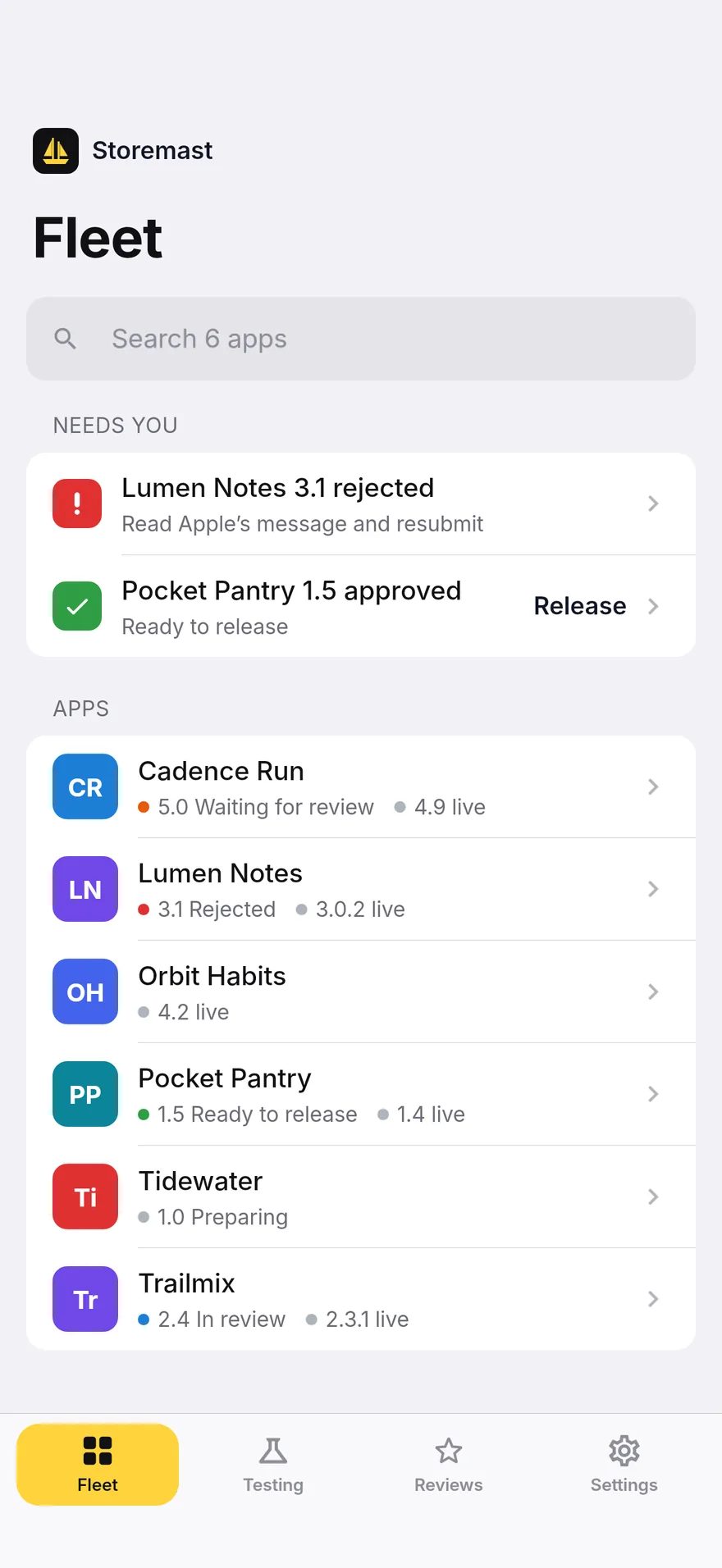
Once it's scripted, updating screenshots for a redesign or a new language is a re-run, not a weekend.
Common upload errors
| Problem | Usual cause | Fix |
|---|---|---|
| Wrong dimensions | Exported at a scale factor, or cropped by a pixel | Export at an exact accepted size; check with an image info tool |
| Image refused with no clear reason | Alpha channel in a PNG | Flatten and export without transparency, or use JPEG |
| Set for a size is missing | The app runs on iPad, but there's no 13-inch set | Add iPad screenshots, or check the app's supported devices |
| Wrong screenshots in a language | That localization has no set, so the primary language shows | Upload a set for that localization |
Screenshots and the rest of your product page
Screenshots work together with your app name, subtitle, icon and preview video. An app preview plays before the screenshots when you have one, so the two should tell the same story. To see whether a new set actually helps, test it with product page optimization: our App Store optimization guide explains how.
Once the version with your new screenshots is in review, the rest is waiting. Storemast shows the review status of every app on one screen and lets you release the approved version from your iPhone; see Fleet.
Questions
What size should iPhone screenshots be for the App Store?
At the time of writing, the 6.9-inch display size: 1320 × 2868 or 1290 × 2796 pixels in portrait (the same sizes turned sideways for landscape). Apple scales that set down for smaller iPhones. Check the current Screenshot specifications in App Store Connect Help, because the list changes with new devices.
Do I still need 6.5-inch screenshots?
Only if you don't upload a 6.9-inch set. App Store Connect asks for one of the two large iPhone sizes, and 6.9-inch is the one to make for new apps.
How many screenshots can I upload?
From 1 to 10 per device size, per localization. The first few matter most, because they're what people see in search results and at the top of your product page.
Can App Store screenshots have transparency?
No. Export PNG or JPEG without an alpha channel. A transparent PNG is a common reason an upload is refused.
Can I change screenshots without a new version?
Screenshots belong to a version. You can change them while the version is editable, for example while you prepare an update; for a version that's already live, you change them by submitting a new version.
Do I need different screenshots for each language?
No, but you can. Each localization can have its own set; a language without its own set shows the screenshots of your primary language.