 Storemast
Support
Support
Email [email protected] and we'll reply within two working days. Please never send your API key or .p8 file.
Connecting App Store Connect
Storemast needs a team API key: issuer ID, key ID and the .p8 private key. Step-by-step: how to create an App Store Connect API key. How the key is kept safe: security.
Your Support ID
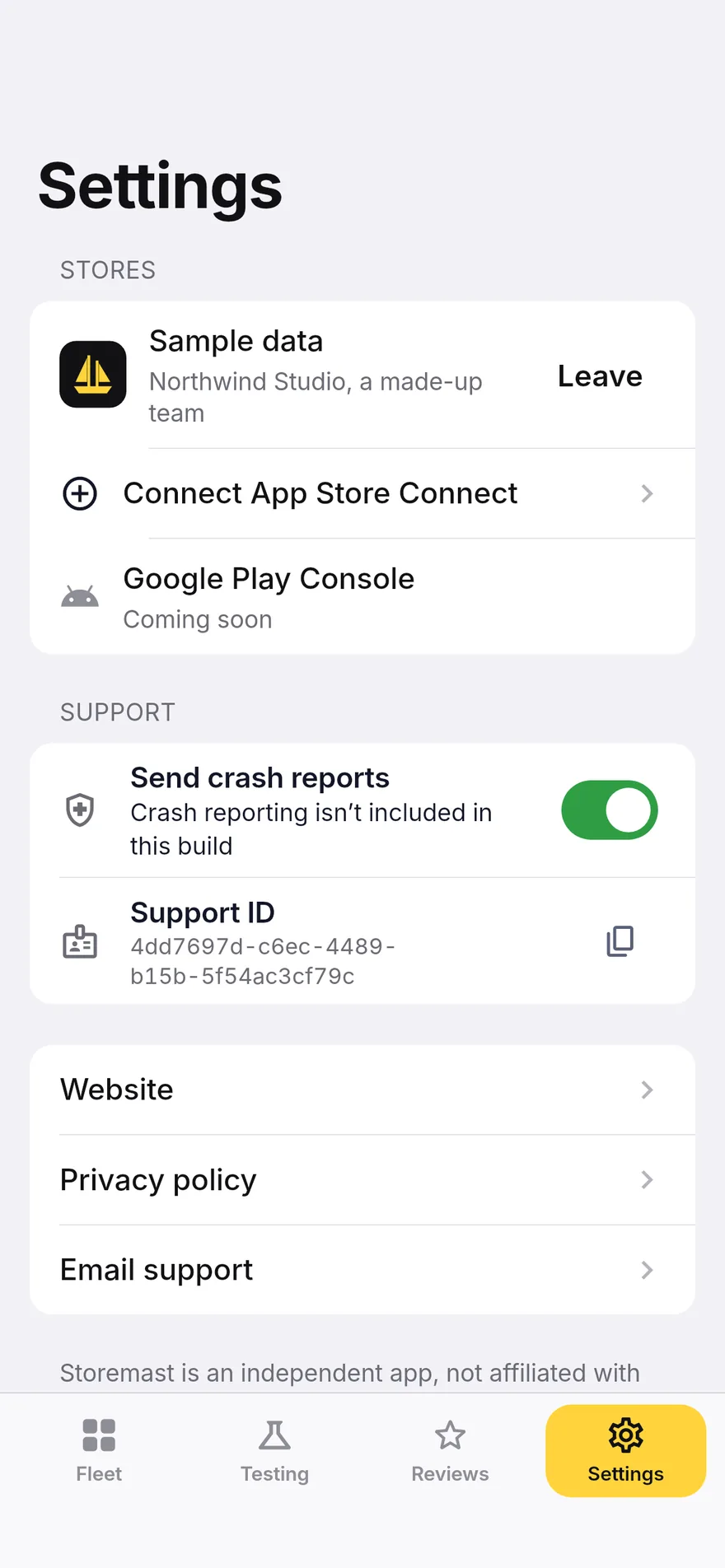
In the app, open Settings, find Support ID and tap copy, then paste it into your email. It's a random ID for your installation that lets us find crash reports from your phone without knowing who you are. Crash reports can be turned off on the same screen (Send crash reports).
Remove a key from your phone
Settings › your connection › Remove key. The key is deleted from the iPhone's Keychain. To make it useless everywhere, revoke it in App Store Connect under Users and Access › Integrations › App Store Connect API.
Delete your data
We don't hold an account for you, and your App Store Connect data never reaches us. For crash reports, email us your Support ID and we'll delete them; they're deleted automatically after 90 days at most.
Something else
Check the FAQ, or email us. If you found a mistake in one of our guides, we'd like to hear about that too.
Questions
Apple refused my key. What now?
Check that the issuer ID and key ID belong to the same team key, with no spaces, and that you pasted the whole .p8 including the BEGIN and END lines. If the key was revoked in App Store Connect, create a new one.
A button says I don't have permission.
The key's role is too low for that action. Release, rollout and What's New need App Manager (or Admin); replies need Customer Support, App Manager or Admin. Create a new key with the right role.
How do I stop Storemast from changing anything?
Settings › your connection › turn on Look only. Release, rollout and reply buttons are hidden on this phone.