 Storemast
Guide
Staged rollouts on Google Play: how to roll out an update safely
By the Storemast team · Last updated
TL;DR
A staged rollout releases a Google Play update to a percentage of users you choose, picked at random. You raise the percentage when you're happy, halt it if something's wrong (people who already updated keep the new version) and resume or complete it later. Unlike App Store phased release, there's no fixed schedule, and users outside the rollout can't get the update by hand. Watch Android vitals and reviews for the new version before each step. A real rollback is always a new release with a higher version code.
Every Android update meets a wider mix of devices than you can test on. A staged rollout limits the damage when one of them reacts badly: the update goes to a share of your users first, and you decide when it reaches the rest. If you know App Store phased release, the idea is the same, but the controls and the rules are different enough to trip you up. Here's how it works.
How a staged rollout works
- You choose the percentage. When you roll out a production release, you can release it to a percentage of users instead of everyone.
- Users are picked at random. You can't choose who, but as you raise the percentage, people who already have the update stay in.
- Only those users can get it. Everyone else keeps seeing the previous version on Google Play.
- There's no schedule. The rollout stays at a percentage until you change it.
- You can halt and resume, or complete it to 100% at any time.
How to start a staged rollout
- In Play Console, open the app and the Production track, and create a release with your new app bundle and release notes.
- When you review and roll out the release, set a rollout percentage below 100%.
- Send the release for review. Once it's approved (and published, if you use managed publishing), the rollout starts at your percentage.
Play Console can also limit a rollout to particular countries. Check Play Console Help for how country targeting works with your release before relying on it.
Choosing a percentage
Google doesn't prescribe a schedule. What works depends on how many users you have and how risky the update is.
| Situation | A sensible start |
|---|---|
| Large user base, risky change (new login, new storage) | A few percent, then small steps over a week or more |
| Medium user base, normal update | Around 10–20%, then larger steps over a few days |
| Small user base | A higher start, because a few percent of a small number shows nothing |
| Urgent fix for a live bug | A short rollout, or straight to 100% once you've checked it |
The point of each step is to collect enough crashes, ANRs and reviews from the new version to decide. If a step gives you too little data to judge, it's too small.
Increasing, halting and resuming
Increase
In the release on the Production track, use Manage rollout (or Update rollout) and enter a higher percentage. You can only go up. Choosing 100% completes the rollout.
Halt
If something's wrong, choose Halt rollout. While it's halted:
- no more users receive the update,
- users who already installed it keep it (Google Play has no rollback), and
- everyone else stays on the previous version.
Resume or replace
If the problem turns out to be elsewhere (a server issue, say) you can resume the halted rollout at a percentage. If the build itself is at fault, create a new release with a higher versionCode containing the fix, and roll that out instead. Users on the bad version get the fix as an update; there's no way to move them back to the old one.
From the API
The Google Play Developer API models the same states on a track release: inProgress with a userFraction (for example 0.1 for 10%), halted, and completed. Changing the fraction or status is an edit you commit, which is how CI tools and scripts step rollouts up.
Google Play staged rollout and App Store phased release compared
| Google Play staged rollout | App Store phased release | |
|---|---|---|
| Schedule | None: you set each percentage | Fixed 7 days: 1, 2, 5, 10, 20, 50, 100% |
| Who it limits | Everyone: only users in the rollout can get the update | Only automatic updates |
| Updating by hand | Not possible for users outside the rollout | Anyone can update by hand at any time |
| Set up | Choose a percentage when you roll out the release | Turn on while preparing the version, before release |
| Stopping | Halt, then resume or replace | Pause for up to 30 days in total, then resume |
| Finishing early | Raise to 100% | Release to all users |
| Rollback | No; ship a new release with a higher version code | No; ship a new version |
The big practical difference: on the App Store, phased release is a brake, because keen users update by hand on day one. On Google Play, a staged rollout really does keep the update from everyone outside the percentage. That makes it a stronger safety net, and it also means users outside the rollout can't get a fix early, even if they ask. For the iOS side, see App Store phased release explained.
Monitoring with Android vitals
Android vitals in Play Console is where a rollout's health shows first. Before each step, look at:
- Crash rate and ANR rate for the new version compared with the previous one. Filter by version code.
- Clusters by device and Android version. A crash that only hits one chipset or one OS version can hide in the overall rate.
- Google's bad behaviour thresholds. Staying under them matters for your app's visibility on Google Play, so a release that pushes a rate up deserves a halt.
- New reviews for the latest version, filtered by version in Ratings and reviews.
- Your own signals: crash reporting, server errors and support email.
A rollout routine
- Day 1: start at your first percentage. Check vitals and reviews in the evening.
- Days 2–3: if the crash and ANR rates for the new version are in line with the old one, raise the percentage.
- Days 4–7: keep raising in larger steps while things stay calm. Complete when you're confident.
- Any day: if something's wrong, halt, fix, and roll out a new release with a higher version code.
Rollouts in Storemast
For App Store apps, Storemast shows the day and percentage of every phased release and lets you pause, resume or release to everyone from your iPhone, confirmed with Face ID.
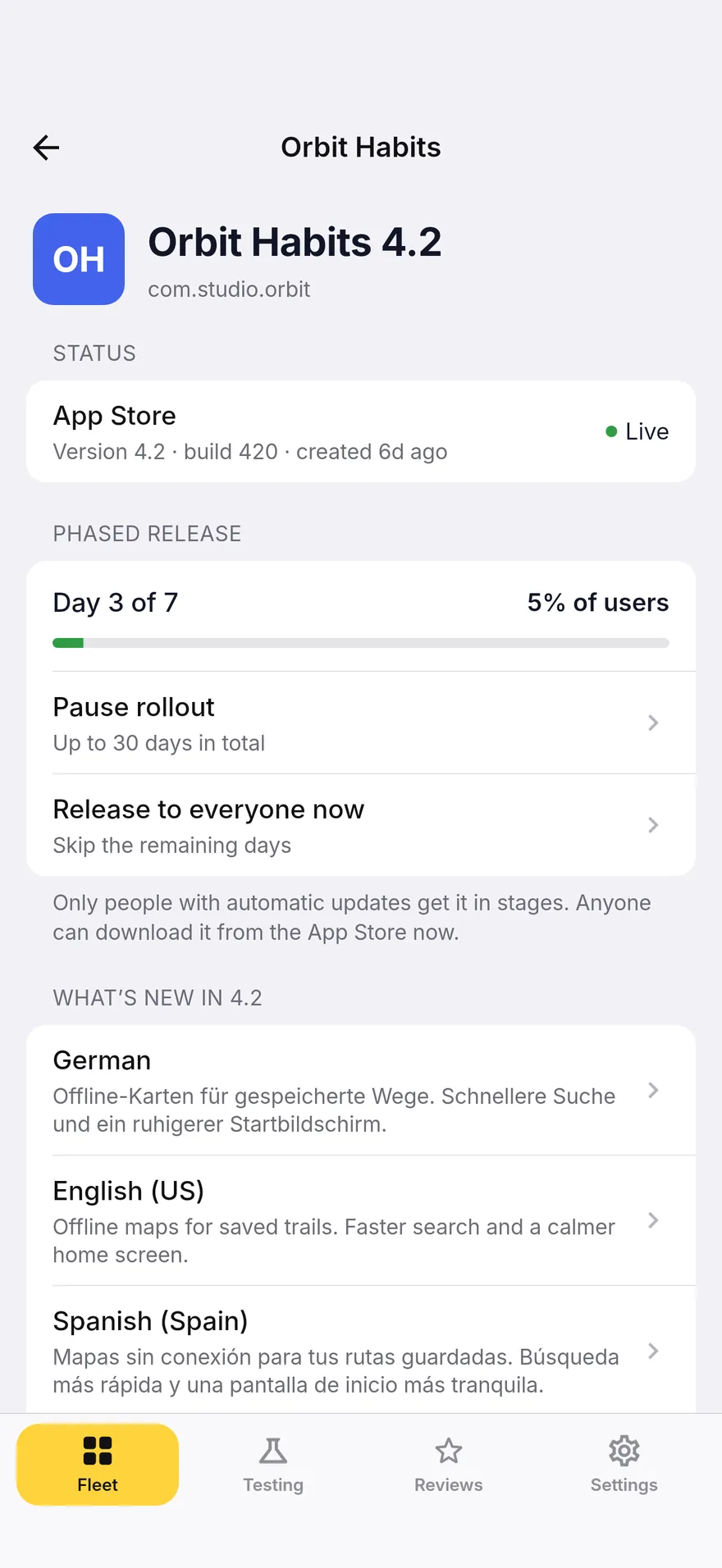
Google Play support, with staged rollouts on the same screen, is planned but not available yet. See phased release in Storemast, and for the rest of Play Console, the Google Play Console guide.
Questions
What percentage should a staged rollout start at?
There's no rule from Google. Many teams start small, at a few percent, and raise it in steps over several days. With few users, a small percentage may be too few people to show problems, so start higher.
Can I lower the percentage of a staged rollout?
No. You can raise the percentage or halt the rollout, but you can't take the update back from users who already have it. To undo a bad update, halt and publish a fixed release.
What happens to users when I halt a rollout?
Users who already installed the update keep it. Nobody else gets it while the rollout is halted. You can resume it later or replace it with a new release.
Can users get the update before their turn?
Generally no. Unlike the App Store, Google Play only offers the update to users in the rollout, so others can't get it by updating by hand.
How is a staged rollout different from App Store phased release?
App Store phased release follows a fixed 7-day schedule and only paces automatic updates; anyone can update by hand. A Google Play staged rollout uses percentages you choose, with no schedule, and limits who can get the update at all.
Can I manage staged rollouts from Storemast?
Not yet. Storemast manages App Store phased releases today. Google Play support, including rollouts, is planned but not available.