 Storemast
Guide
How to release an app update from your iPhone
By the Storemast team · Last updated
TL;DR
Submit the version with Manually release this version selected. When App Review approves it, it waits in Pending Developer Release. In Storemast, the version appears under Needs you; open it, tap Release now, check the confirmation and approve with Face ID. If phased release is on, the 7-day rollout starts there and then.
Holding an approved update until you're ready is one of the most useful habits in App Store publishing. It lets you launch with your blog post, after a server deploy, or on a day when you can watch crash reports. The catch: approval can arrive at any hour, and the button to release lives in App Store Connect. Here's how to set things up so you can release from your iPhone in a few seconds.
How manual release works
Each App Store version has a release option, set before you submit it for review:
- Manually release this version: after approval, the version waits as Pending Developer Release until you release it.
- Automatically release this version: it goes live as soon as it's approved.
- Automatically release after App Review, no earlier than a date and time you choose: it waits as Pending Apple Release until then.
Only manual release needs a person to press a button, and that's the one this guide is about. For what each status means, see every App Store version status explained.
Step by step
1. Choose manual release when you submit
In App Store Connect, open the new version. Under Version Release, select Manually release this version. While you're there, decide on Phased Release for Automatic Updates: if you turn it on, releasing starts a 7-day rollout; if not, the update goes to everyone at once. Storemast can't change either setting yet, so get them right here. Then submit for review.
2. Connect Storemast once
Create an App Store Connect team API key with the App Manager role (lower roles can't release) and add it to Storemast on your iPhone: issuer ID, key ID and the .p8 file. The key stays in your iPhone's Keychain. Full instructions: how to create an App Store Connect API key.
3. Wait for approval
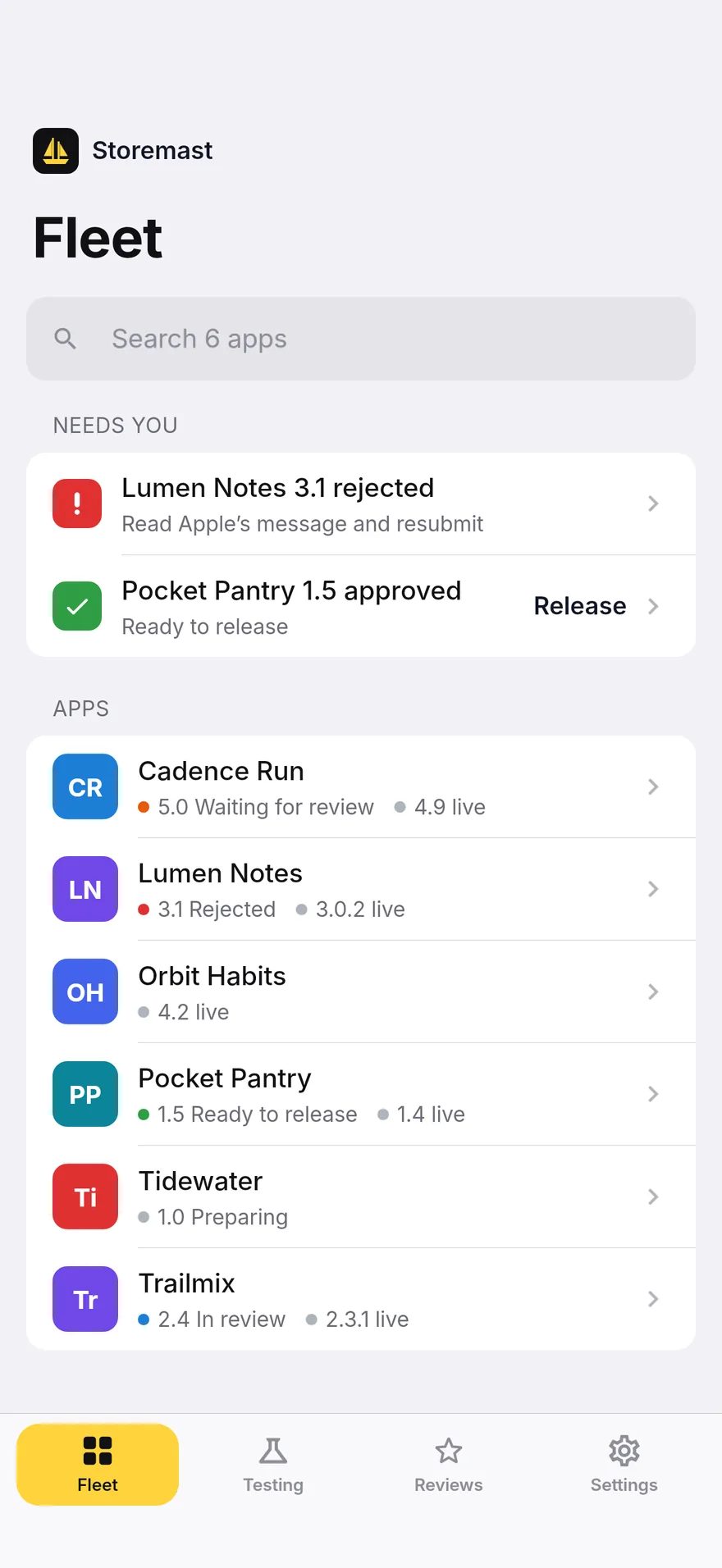
When App Review approves the version, App Store Connect sets it to Pending Developer Release and Apple emails you. In Storemast, the app moves to the top of the Fleet screen under Needs you, marked Ready to release.
4. Check and release
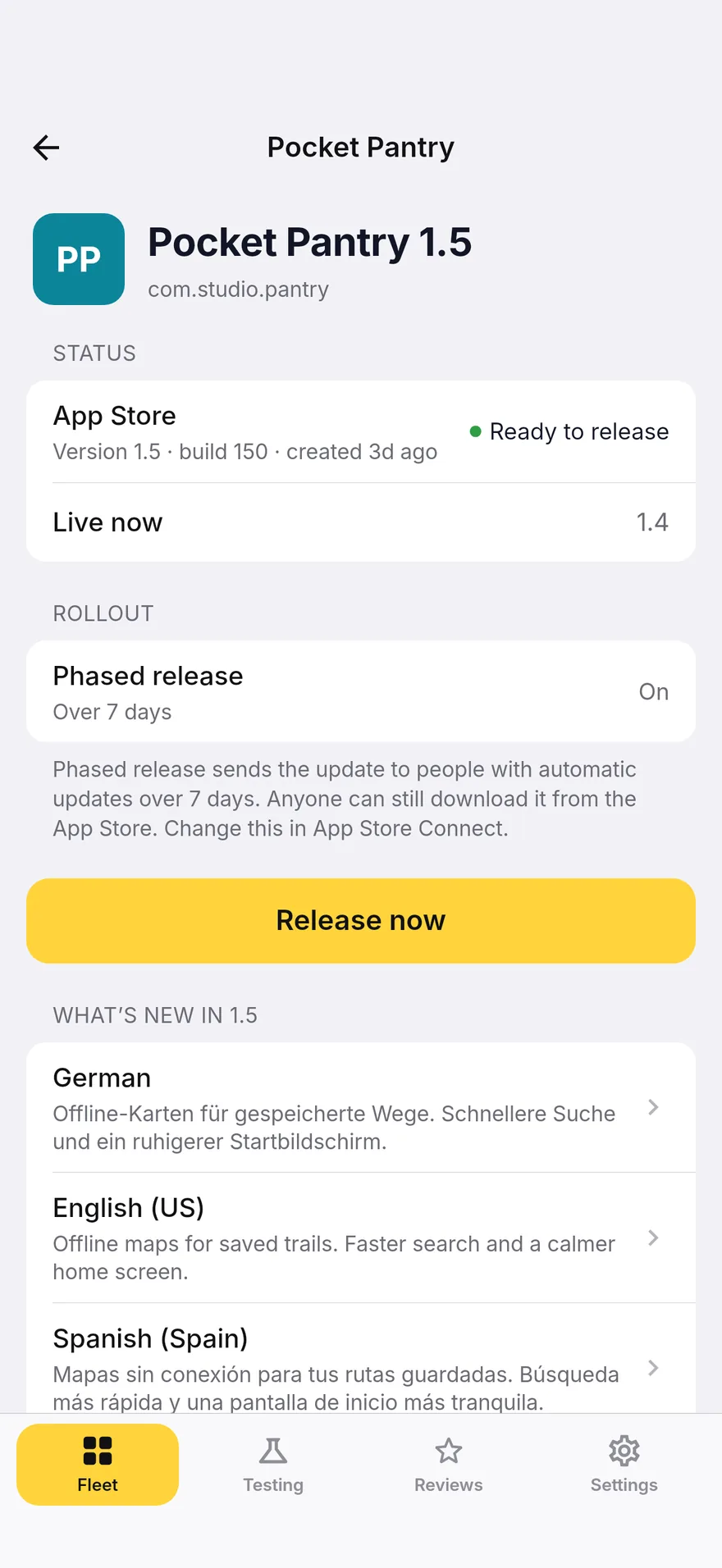
Tap the app to see the version, its build number, whether phased release is on, and What's New in each language. When you're happy, tap Release now.
5. Confirm with Face ID
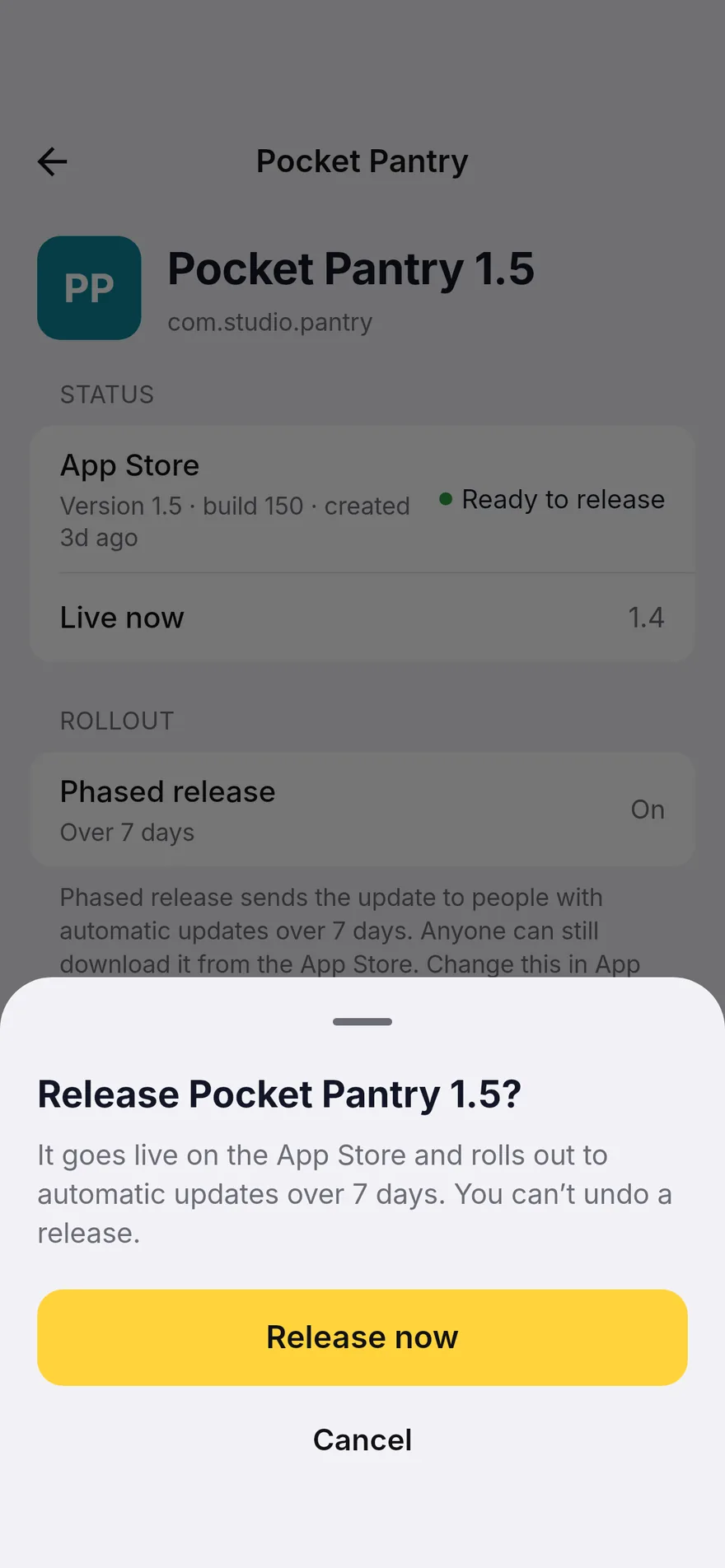
A sheet tells you exactly what will happen: the version goes live on the App Store and, if phased release is on, rolls out to automatic updates over 7 days. It also reminds you that a release can't be undone. Tap Release now and confirm with Face ID (or your passcode). Storemast sends the release request to Apple.
6. Watch it go live
The version moves to Processing for Distribution and then Ready for Distribution, which is live. With phased release, Storemast shows the day and percentage, and you can pause, resume or release to everyone: see phased release explained.
A release checklist
Before you tap the button, a minute's check saves a bad day:
- Server side ready? If the update depends on an API change, deploy that first.
- What's New right? Typos are fixable only before submission; check them early (editing What's New).
- Right time? Release when you can watch crash reports for the next few hours.
- Phased release on? For most updates, yes. It's your safety net.
- Support ready? If the update changes something visible, have a reply ready for confused reviews.
Pitfalls
- Forgetting it's pending. A version in Pending Developer Release is easy to forget, especially across several apps. Storemast keeps it under Needs you until it's released.
- A key without the role. A Developer or Customer Support key can see the version but Apple will refuse the release. Use App Manager.
- Releasing by accident. Storemast always shows a confirmation and asks for Face ID. If someone shares your phone, turn on Look only to hide the button.
- Expecting instant availability everywhere. Processing and store propagation take a little time; don't announce the second you tap.
Questions
How long can a version stay in Pending Developer Release?
Apple doesn't publish a short limit, and versions commonly wait days or weeks. Don't leave it for months: if your agreements or the build's requirements change, you may need to submit again.
What if I submit a new version while one is pending release?
You can't have two versions in progress for the same platform. Release or remove the pending version first; App Store Connect will guide you.
How quickly is the app live after I release?
The version goes through Processing for Distribution, which usually takes a short while, then shows as Ready for Distribution. Reaching every App Store region can take a little longer.
Can I release from my iPhone without a third-party app?
Yes, App Store Connect also works on mobile. Storemast is built for people with several apps: one screen with every app's status and the release button where you need it.
Can I undo a release?
No. Once released, the version is live. With phased release, you can pause the automatic-update rollout while you prepare a fix.