 Storemast
Feature
Edit your store listing in every language, from your iPhone
A typo in your description, a keyword that isn't pulling its weight, a promotional line for this week's sale: small listing changes shouldn't wait until you're back at your Mac.
What you can edit
Open an app, choose Store listing, and Storemast lists each language with a preview of its text. Tap a language to edit:
| Store | Field | Limit | When it can change |
|---|---|---|---|
| App Store | Name, subtitle | 30 each | While a version is being prepared |
| App Store | Keywords | 100 | While a version is being prepared |
| App Store | Description | 4,000 | While a version is being prepared |
| App Store | Promotional text | 170 | Any time |
| Google Play | Title | 30 | Any time |
| Google Play | Short description | 80 | Any time |
| Google Play | Full description | 4,000 | Any time |
"Being prepared" covers Prepare for Submission and a version that was rejected or taken back from review. See every App Store version status explained.
How it works
- Open the listing. From Fleet, tap an app, pick App Store or Google Play at the top, then Store listing. The header shows which version the text belongs to and its state.
- Edit a language. Change the description, keywords or any other field. Each field counts characters against the store's limit, so a keyword list can't quietly run over 100.
- Save with Face ID. Storemast says exactly which fields change in which language, then asks for Face ID or your passcode. On Google Play, all the changes go into one edit, which is committed at once.
If the description and keywords are locked because the version is in review or live, Storemast says so. Keyword and description changes then go with the next version: tap New version (Storemast suggests the next patch number, such as 4.2.1) and the listing carries over for you to change. See versions and submitting for review.
Every language at once
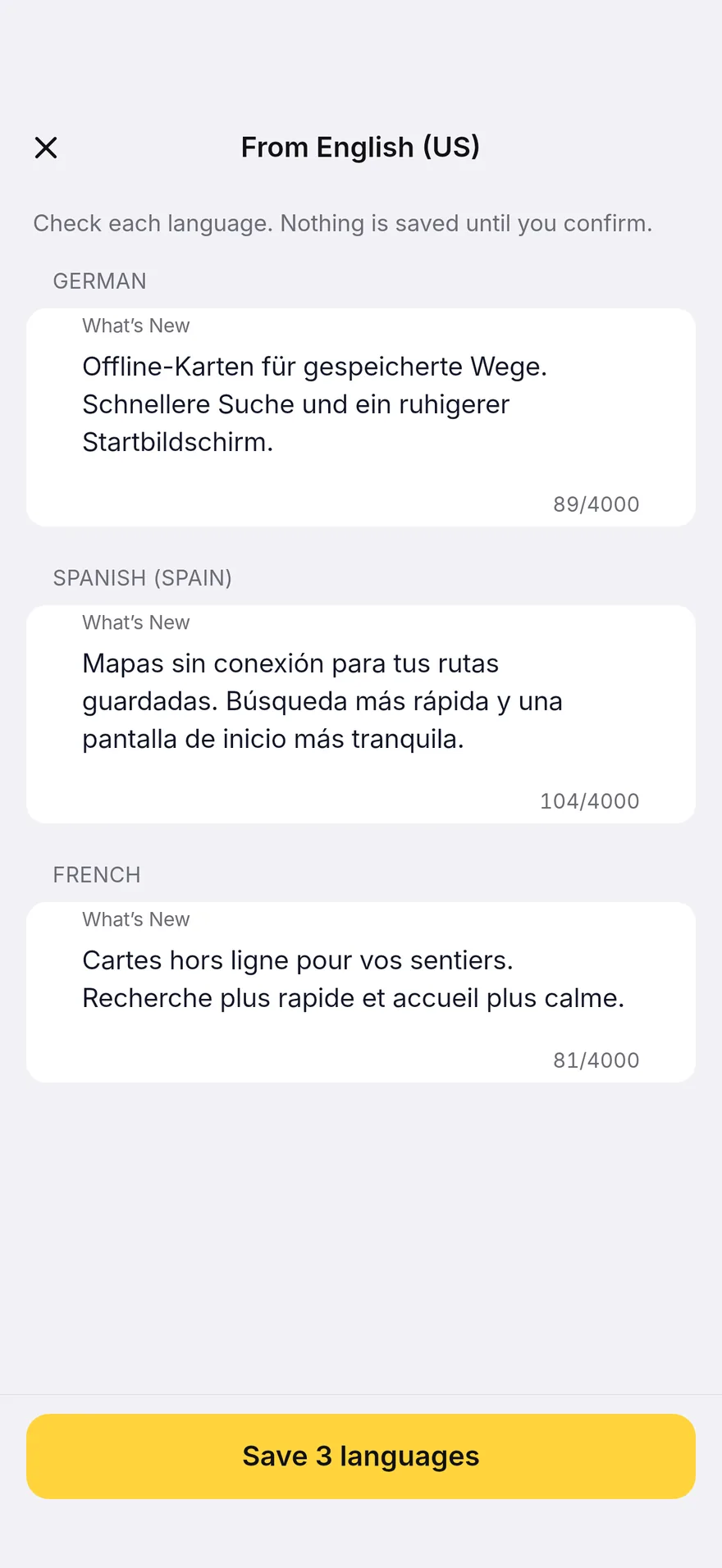
Write the main language first, then tap Translate from it. Storemast translates the editable fields into the listing's other languages with AI, shows every result editable with its counter, and saves them together once you confirm. Translation is included with Storemast Pro (60 AI credits a month) or runs on your own Anthropic key: see AI translation.
Keyword tips for a small screen
- Use the full 100 characters, separated by commas without spaces.
- Don't repeat words that are already in the name or subtitle; Apple indexes those anyway.
- Leave out other companies' trademarks. App Review can reject a listing for them.
- Each language has its own keyword field, so a translated keyword list is a starting point, not the finished set.
More in App Store keywords and the ASO guide.
Promotional text, any time
Promotional text sits above the description on the App Store and is the one listing field Apple lets you change without a new version. That makes it the place for a sale, an event or a new feature you want to point at this week. In Storemast it's editable whenever the app has a version, live or in progress.
Limits to know
- Text only: screenshots, app previews, the icon, categories and age ratings stay in App Store Connect or Play Console.
- Storemast edits existing languages; it doesn't add or remove them.
- Listing changes are part of Storemast Pro. Looking at the listing is free.
- The API key needs a role that can edit metadata, such as App Manager; on Google Play the service account needs Play Console's permission to manage the store presence (store listing) as well.
Questions
Can I change keywords without a new version?
No. Apple only accepts new keywords and a new description on a version that's still being prepared (or was rejected or pulled from review). Storemast shows them read-only otherwise and offers to start the next version. Promotional text can change at any time.
What are the character limits?
On the App Store: name and subtitle 30 characters, keywords 100, promotional text 170 and description 4,000. On Google Play: title 30, short description 80 and full description 4,000. Storemast counts as you type.
Can I change screenshots or the app preview in Storemast?
No. Storemast edits the listing's text. Screenshots, app previews and the app icon are managed in App Store Connect or Play Console.
Can I add a language?
No. Storemast edits the languages the listing already has. Add a language in App Store Connect or Play Console and it appears in Storemast.