 Storemast
Feature
TestFlight testers, groups and beta builds from your iPhone
Beta testing runs on small jobs: invite one more tester, send today's build to the external group, answer a crash report. Storemast puts those jobs for every app in the Testing tab.
A build's page
Tap any build in the Testing tab to open it. For a TestFlight build you see:
- Build details: status, build number, version, when it was uploaded and when it expires.
- External testing: its Beta App Review state and a Send to external testers button.
- What to Test in each language, the note testers read when they install.
- Groups the build is in, with buttons to add it to another group or remove it.
- Expire build, to stop every tester using it at once.
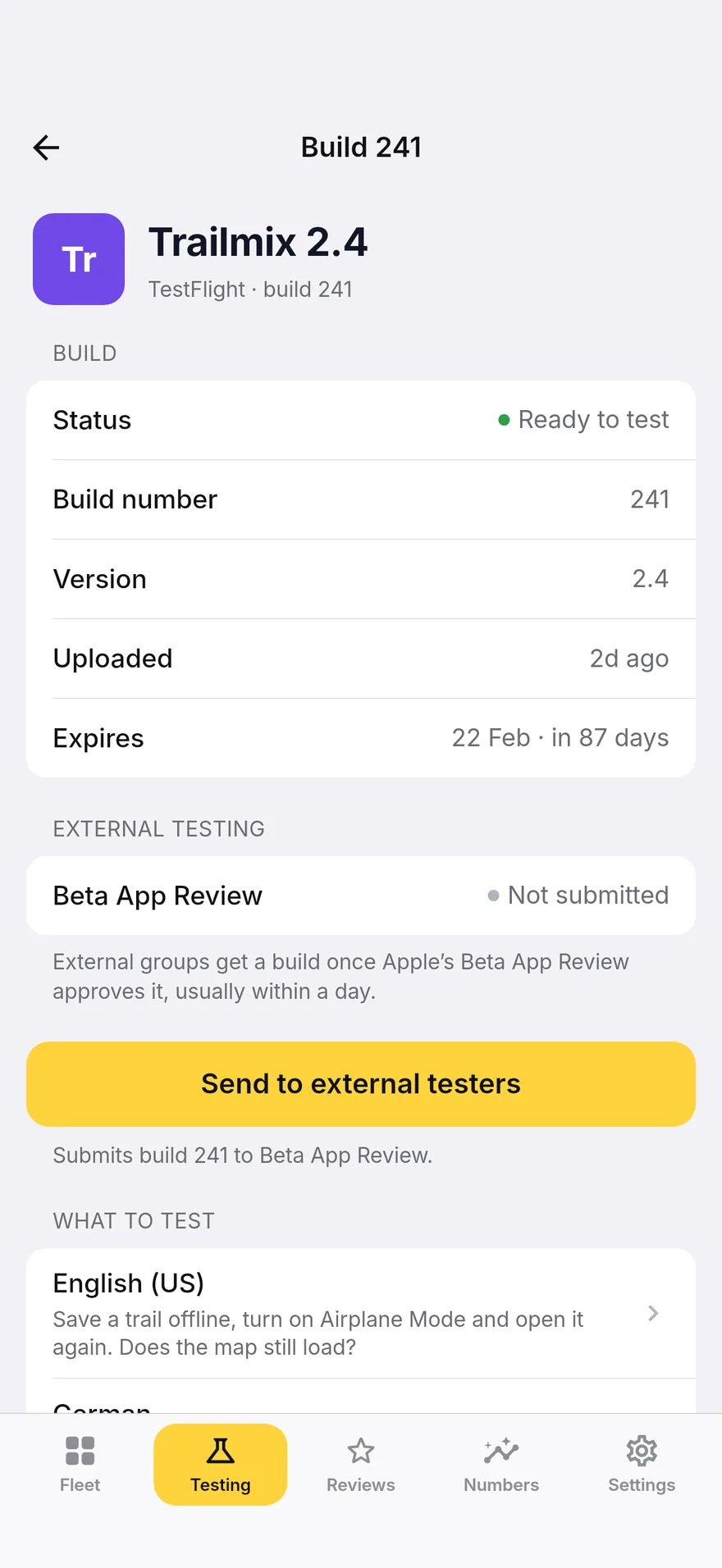
Send a build to external testers
- Write What to Test in your main language. External testers see it when they install, so Storemast asks for it first. Tap Translate from to fill the other languages with AI translation, then check them.
- Add the build to an external group, if it isn't in one yet.
- Tap Send to external testers. Storemast explains that Apple's Beta App Review checks the build first, then asks for Face ID and submits it.
- Watch the state. Once Apple approves it, testers in the build's external groups can install it from TestFlight.
Groups and testers
Each app links to its Groups & testers. Internal groups hold team members from App Store Connect, who get builds without Beta App Review. External groups hold anyone you invite.
- Add a tester by email, with an optional name. TestFlight sends the invitation.
- Remove a tester from a group; they can't install its builds any more.
- Public link: turn it on to let anyone with the link join an external group, copy it to share, or turn it off. People who already joined stay.
Apple's documented limits are 100 internal testers and 10,000 external testers per app. The TestFlight guide covers the rest.
Feedback and expiry
Tester feedback collects the screenshots and crash reports testers send from the TestFlight app, with their comments, per app. Builds still expire 90 days after upload; the TestFlight builds list warns you a week ahead, and Expire build ends one early when it has a problem you don't want more people to hit.
Google Play testing
For Android apps, the Testing tab shows each testing track's release: internal, closed and open testing. On a release you can:
- Promote it to another track, for example from internal testing to closed testing or to production, either to everyone on that track or as a staged rollout (1, 5, 10, 20 or 50%). Google may review a production release first.
- Edit testers on closed and internal tracks: the Google Groups whose members may test.
- See its release notes per language; edit them on the app's release, where What's New lives.
See the Google Play Console guide for how the tracks fit together.
Limits to know
- Storemast doesn't upload builds or create groups; use Xcode, Transporter, your CI or App Store Connect for those.
- Internal testers must already be users in App Store Connect.
- Adding testers, sending builds, What to Test, expiring and promoting are part of Storemast Pro; looking is free.
Questions
Can I add external testers in Storemast?
Yes. Open the app's groups, pick an external group and add a tester by email; TestFlight emails them an invitation, and they can install once a build in that group has passed Beta App Review. You can also turn the group's public link on or off and copy it.
Can I create a TestFlight group?
Not in Storemast. Create groups in App Store Connect; they then appear in Storemast, where you can add and remove testers and builds.
How long does Beta App Review take?
Apple doesn't publish a fixed time. Storemast shows the build's Beta App Review state: not submitted, waiting, in review, approved or rejected.
How do Google Play testers work in Storemast?
Closed and internal testing tracks list the Google Groups allowed to test. You can edit that list, one group email per line. Members join with the opt-in link from Play Console. Open testing has no tester list.