 Storemast
Guide
App Store Connect sales reports: Sales and Trends, proceeds and your vendor number
By the Storemast team · Last updated
TL;DR
Sales and Trends in App Store Connect gives you next-day units, sales and estimated proceeds. The same data comes as downloadable reports, such as the daily Summary Sales Report (a gzip'd, tab-separated file), filed under your vendor number, which you'll find at the top left of Payments and Financial Reports. Apple says daily reports are available the next day, generally by 8 a.m. Pacific Time. Sales is what customers paid; proceeds is your estimated share after taxes and Apple's commission. Final amounts are in Payments and Financial Reports.
App Store Connect has three places that talk about money and downloads, and they don't agree with each other to the cent. That's by design: each answers a different question. This guide covers the day-to-day one, Sales and Trends, and the reports behind it: what's in them, how to read units, sales and proceeds, where the vendor number comes from, which roles can see it all, and how to pull the numbers automatically. Everything here is from Apple's App Store Connect Help and API documentation.
Three reporting tools, three questions
| Tool | Answers | Timing |
|---|---|---|
| Sales and Trends | How many units and how much in sales and estimated proceeds, by app, country and day? | Next-day data |
| App Analytics | How do people find the app, convert and keep using it? (Includes a Sales page under Monetization.) | Only from users who share data; shown above a minimum count |
| Payments and Financial Reports | What exactly will Apple pay, based on settled transactions? | Monthly, on Apple's fiscal calendar |
Apple describes Sales and Trends as next-day data on App Store sales and app units, for free and paid apps and In-App Purchases. It records a transaction when the customer initiates it. iMessage app and sticker pack sales are counted in the containing iOS app. After an app transfer, you keep sales data from before the transfer but not after.
Units, sales and proceeds
These three words cause most of the confusion. Apple's definitions, from the Sales and Trends reference:
- App Units: first-time purchases. A unit is counted when a customer taps Buy or Get for the first time. Updates, downloads to the customer's other devices and re-downloads aren't counted. Family Sharing downloads count for free apps, not paid ones.
- In-App Purchases: consumables, non-consumables and subscriptions bought. Restored purchases aren't counted.
- Sales: the total billed to customers for apps, bundles and In-App Purchases. Taxes are included only where they're part of the App Store price.
- Proceeds: the estimated amount you'll receive: customer price minus applicable taxes and Apple's commission, per Schedule 2 of your Paid Apps Agreement.
Sales and Trends shows sales and proceeds in US dollars, estimated with a rolling average of the previous month's exchange rates. Filtering by store currency shows purchases made in that currency, not your total converted. For the real figure, Apple points you to Payments and Financial Reports.
Your vendor number
Reports are filed under a vendor number, an ID for your legal entity in Apple's reporting. You choose it when you download a report in App Store Connect, and the App Store Connect API requires it.
Where to find it: open Payments and Financial Reports. Apple's help says the vendor number sits in the top left corner, under your legal entity name. If you belong to several teams, each has its own; make sure the number matches the team your API key belongs to. Apple doesn't document the format, so copy it rather than retyping it.
Who can see sales: roles
Apple's role descriptions give access to sales to a few roles:
- Finance: financial information and reports; can view all apps in Payments and Financial Reports, Sales and Trends and App Analytics.
- Sales: sales, downloads and other analytics.
- Admin and the Account Holder, who can see everything.
Payments and Financial Reports themselves need Account Holder, Admin or Finance. Users limited to certain apps only get reports for the apps they can access. For an API key, the same logic applies: a key whose role can't see sales is refused by the sales reports endpoint. If the key also does other jobs, consider a separate key just for reports; see how to create an API key.
How to download a sales report
- Find your vendor number in Payments and Financial Reports, top left.
- Check your role: Finance, Sales, Admin or Account Holder.
- Open the reports. Select Trends at the top of App Store Connect, then Sales and Trends Reports on the left.
- Pick a report and a period. Scroll to the report you want, choose the vendor and a date or period, and click Download.
- Open the file. It's a gzip-compressed (.gz) file holding a tab-delimited .txt file. On a Mac, double-click to unzip, then open it in a spreadsheet.
- Automate it with the API once you know which report you need (below).
Which report is which
| Report | What it holds |
|---|---|
| Summary Sales Report | Aggregated sales and downloads for apps and In-App Purchases: the one most people want |
| Pre-Order Report | Units ordered and cancelled for pre-order apps |
| Subscription Report | Active subscriptions, introductory prices and marketing opt-ins |
| Subscription Event Report | Upgrades, renewals, introductory price conversions and other events |
| Subscriber Report | Transaction-level subscriber activity with random subscriber IDs |
| Subscription Offer Redemption Report | Offer code redemptions by date and country or region |
| Win-back Eligibility Report | Churned subscriptions grouped for win-back offers |
Reading the daily Summary Sales Report
Each row is a product, in a country, at a price, of a transaction type. The columns that matter most:
- Title and SKU: the app name, or the product ID for an In-App Purchase.
- Product Type Identifier: the kind of transaction. Apple's FAQ notes that app updates are type 7 and always free, which is why a paid app can show rows with zero proceeds; app sales are type 1.
- Units: negative values are refunds.
- Developer Proceeds: per unit, in the Currency of Proceeds. Multiply by Units for the row's total. Refund rows have negative units and positive per-unit proceeds, so the product comes out negative, as it should.
- Customer Price and Customer Currency: what the customer paid per unit, taxes included where Apple collects them.
- Parent Identifier: on In-App Purchase rows, the SKU of the app it belongs to. That's how you add a subscription's proceeds to the right app.
- Country Code, Device and Proceeds Reason (“Rate After One Year” when a subscription has run more than a year and you get 85% instead of 70%, minus taxes).
Days in these reports run midnight to 11:59 p.m. Pacific Time, so “yesterday” in London or Tokyo doesn't line up exactly with a report day.
When reports arrive, and how long they stay
| Frequency | Available (Apple) | Kept for |
|---|---|---|
| Daily | The following day | One year |
| Weekly | Mondays | One year |
| Monthly | Five days after the month ends | One year |
| Yearly | Six days after the year ends | Ten years |
Apple says reports are generally available by 8 a.m. Pacific Time, and doesn't publish more about delays, so allow for the odd late day. A Summary Sales Report only exists for a day when at least one app unit was sold, so a missing day can simply mean no sales. Apple doesn't keep or regenerate reports past those periods, so if you want history beyond a year, store the files yourself.
Sales reports through the API
The App Store Connect API's Download sales and trends reports endpoint, GET /v1/salesReports, takes filters for vendorNumber, reportType (such as SALES), reportSubType (SUMMARY), frequency (DAILY, WEEKLY, MONTHLY, YEARLY), reportDate and version, and returns the same gzip'd tab-separated file. Apple's reference lists which version goes with each report type; using the wrong combination is an error, so copy it from the current table. Authentication is the usual ES256 token; see the App Store Connect API guide.
A few habits that save time: ask for yesterday's report after 8 a.m. Pacific, treat “not found” for a day as “no report yet, or no sales”, and store each file once you have it.
Sales numbers on your iPhone
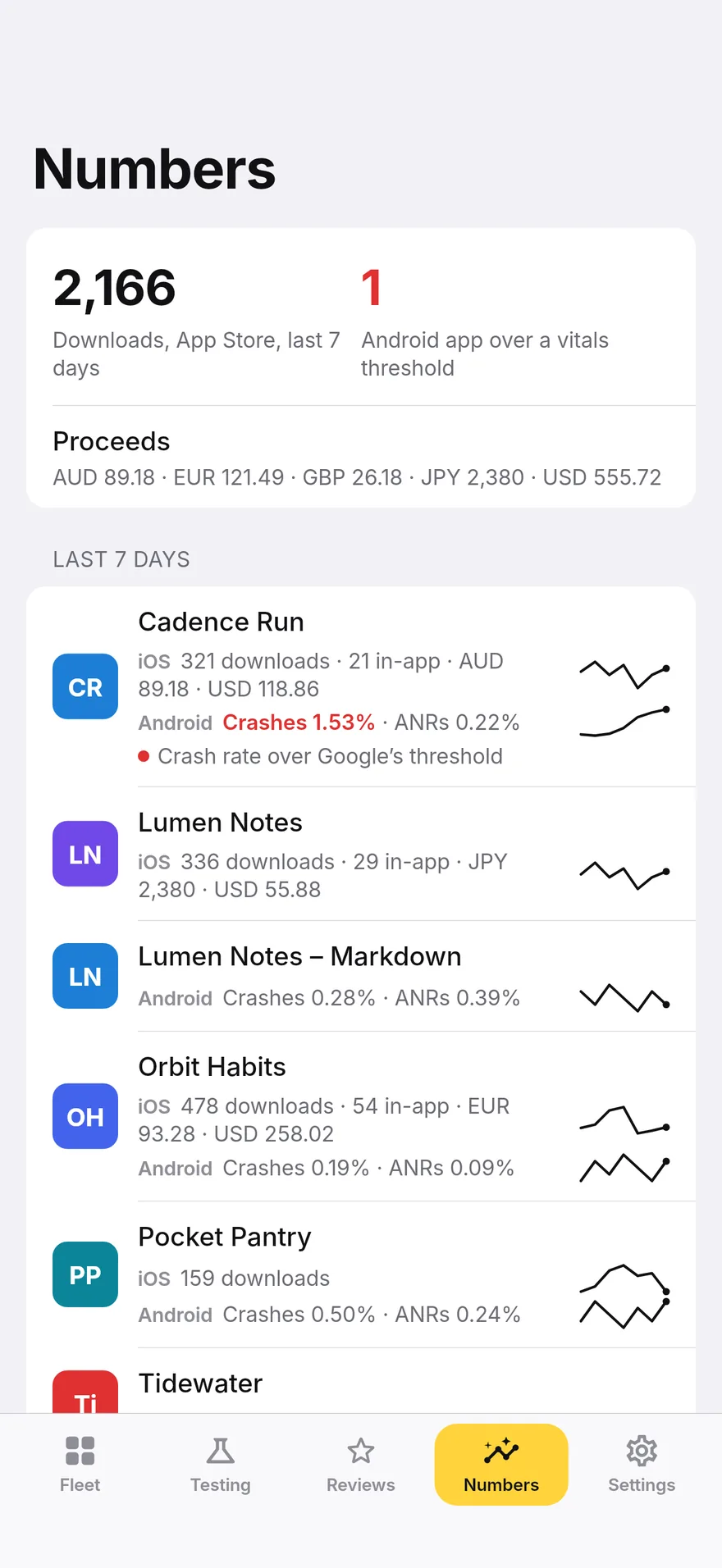
Apple's own App Store Connect app shows Sales and Trends. If you look after apps on both stores, Storemast's Numbers tab puts them on one screen: for the App Store, first-time downloads per app and proceeds over the last 7 days, read from the daily Summary Sales Reports with your API key; for Google Play, crash and ANR rates from Android vitals. Add your vendor number to the App Store connection once, and use a key whose role can read sales. Proceeds are shown in the currency Apple pays them in, not converted, and they stay estimates, like everything in Sales and Trends.
For payments, tax and banking, App Store Connect remains the place; see the App Store Connect guide for how its sections fit together.
Questions
Where do I find my App Store Connect vendor number?
Open Payments and Financial Reports in App Store Connect. The vendor number is in the top left corner, under your legal entity name. You need it to download reports with the App Store Connect API.
What's the difference between sales and proceeds?
Sales is the total amount billed to customers. Proceeds is the estimated amount you receive: the customer price minus applicable taxes and Apple's commission, per Schedule 2 of the Paid Apps Agreement.
When are daily sales reports available?
Apple says daily reports are available the following day, generally by 8 a.m. Pacific Time. Weekly reports come on Mondays, monthly reports five days after the month ends.
Why don't Sales and Trends numbers match my payment?
Sales and Trends is next-day data with estimated proceeds, using a rolling average of the previous month's exchange rates. Payments and Financial Reports reflect settled transactions and final proceeds.
Why is there no sales report for some days?
Apple only produces a Summary Sales Report when at least one app unit was sold that day. A day with no qualifying activity has no report.
Which role do I need to see sales in App Store Connect?
Finance and Sales roles can see Sales and Trends, as can Admins and the Account Holder. An API key needs a role with the same access.