 Storemast
Guide
How to translate your App Store description and Google Play listing
By the Storemast team · Last updated
TL;DR
Translate from one base language, field by field, within each store's limits: App Store name and subtitle 30, keywords 100 (Apple counts bytes), promotional text 170, description and What's New 4,000; Google Play title 30, short description 80, full description 4,000, release notes 500. Machine or AI translation makes a good draft; it gets length, keywords, tone and names wrong if nobody checks. Choose keywords per market rather than translating them, keep a do-not-translate list, and have a native speaker read the name, subtitle, keywords and first lines before you publish.
Adding a language to your store page is mostly a translation job, and translation is where things go wrong quietly: a subtitle that no longer fits, keywords nobody searches for, a brand name turned into a common noun. This guide is about the translating itself, for both the App Store and Google Play: which text you're translating, how much room each field gives you, where machine and AI translation help and where they fail, and a process that keeps the result readable. Deciding which markets to localise, screenshots per locale and right-to-left layouts are covered in App Store localization.
What you're translating, per store
Both stores hold store text per language, and the limits are per field, per language. Apple's and Google's documented limits at the time of writing:
| Field | App Store | Google Play |
|---|---|---|
| Name / title | 30 characters | 30 characters |
| Subtitle / short description | Subtitle, 30 characters | Short description, 80 characters |
| Keywords | 100 bytes, not shown to users | No keywords field |
| Promotional text | 170 characters, editable any time | – |
| Description | 4,000 characters, plain text | Full description, 4,000 characters |
| Release notes | What's New, 4,000 characters (not on a first version) | Release notes, 500 characters, per release |
| Beta notes | TestFlight What to Test, optional per language | – |
Two details matter for translators. Apple defines the keywords limit as 100 bytes, not characters, so in languages written in non-Latin scripts fewer characters may fit; trust App Store Connect's counter. And Google says its limits count full-width and half-width characters the same.
The fields also differ in when you can change them. On the App Store, promotional text can change at any time; description, keywords and What's New belong to a version that's still being prepared, and name and subtitle changes go live with a version. On Google Play, listing changes don't need a new release, while release notes belong to a release. That decides when a translation can actually reach users.
Translate from one base language
Pick one language as the source of truth, normally the App Store app's primary language and Google Play's default language, and translate everything from it. Translating German from French from English multiplies errors, and when you change the English later you know exactly which languages need redoing.
Two things to settle before anyone translates a word:
- A do-not-translate list: your app name, feature names that appear in the app's interface, other brands, version numbers, URLs. If the app itself isn't localised, a translated feature name that doesn't match the screen confuses people.
- A tone per language: formal or informal address (Sie or du, vous or tu, usted or tú). Pick one and keep it across fields and updates.
Where machine translation goes wrong
Machine translation, whether a classic translation tool or a large language model, is good at sentences and bad at store metadata, because store metadata is mostly constraints. The usual failures:
- Length. Many languages run longer than English. A 28-character English subtitle can come back at 36 and be rejected by the field, or squeezed into something awkward. Give the tool the limit for every field, then check.
- Literal keywords. A translated keyword list is the single most common waste. The dictionary word for “budget” or “habit tracker” is often not what people type; sometimes they type the English word.
- Names translated. Feature or brand names come back as ordinary words, or a translation lands on someone else's trademark, which Apple's rules don't allow in metadata in any language.
- Marketing claims drifting. “Fast” becomes “the fastest”. A claim you can't support is a problem in any language.
- Formatting. Bullets, line breaks and emoji move or vanish. App Store descriptions are plain text; check that the structure survived.
- Units, dates and prices. “$4.99”, “March 3” or miles in a description read as foreign elsewhere, and prices differ per storefront anyway.
- Regional variants. Spanish (Spain) and Spanish (Mexico), Portuguese (Portugal) and Portuguese (Brazil), French and French (Canada) are separate localizations with different words.
Keywords: choose, don't translate
On the App Store, the name, subtitle and keywords field are what decide whether you appear in a local search. Treat them as research, not translation: try candidate terms in that country's App Store search, see what's suggested and what already ranks, and ask a native speaker which word they'd type. Then fill the 100 bytes with commas, no spaces and no words already in your name or subtitle. The rules are the same in every language; see App Store keywords.
Google Play has no keywords field, so the title, short description and full description carry search there. A translated full description should still read naturally; stuffing it with terms reads badly in any language and Google's metadata policy discourages it.
A translation process that holds up
- Finish the base language for every field, approved and within limits.
- Write the do-not-translate list and tone for each language.
- Draft the translations with a professional translator, a translation tool or AI, field by field, with each field's limit stated.
- Redo the keywords per market as above.
- Check lengths and names: nothing over the limit, nothing cut mid-sentence, names and numbers untouched.
- Get a native read of the name, subtitle, keywords, short description and first three lines of the description. That's a few hundred words per language, and it catches most of the damage.
- Publish and look. Save the localizations, submit with your next version where Apple requires one, and view the live page in that storefront.
For release notes, the same applies at a smaller scale every update. Keep them short in the base language so the 500-character Google Play version is a trim, not a rewrite; see What's New release notes and Google Play release notes.
Keeping translations in sync
The first translation is the easy part. The drift comes later: you rewrite the English description for a new feature, and twelve languages still describe the old app. A few habits help:
- Change the base language first, then every other language in the same sitting, before you submit the version.
- Keep the text in files per locale (fastlane's metadata folders, for example), so a change shows up as one diff across all languages.
- Retranslate only what changed. A new paragraph doesn't need the whole description redone, and every full retranslation is another chance for a reviewed sentence to come back different.
Google Play's automatic translations
Google Play has a fallback the App Store doesn't: if you haven't added a translation for a language, Google says Play may show users an automated translation by Google Translate, with a note that it was translated automatically and an option to see your default language, or simply show your default language. It's better than nothing, but you can't review it, and Google itself recommends your own translations. On the App Store, a storefront without a matching localization shows your primary language.
AI translation in Storemast
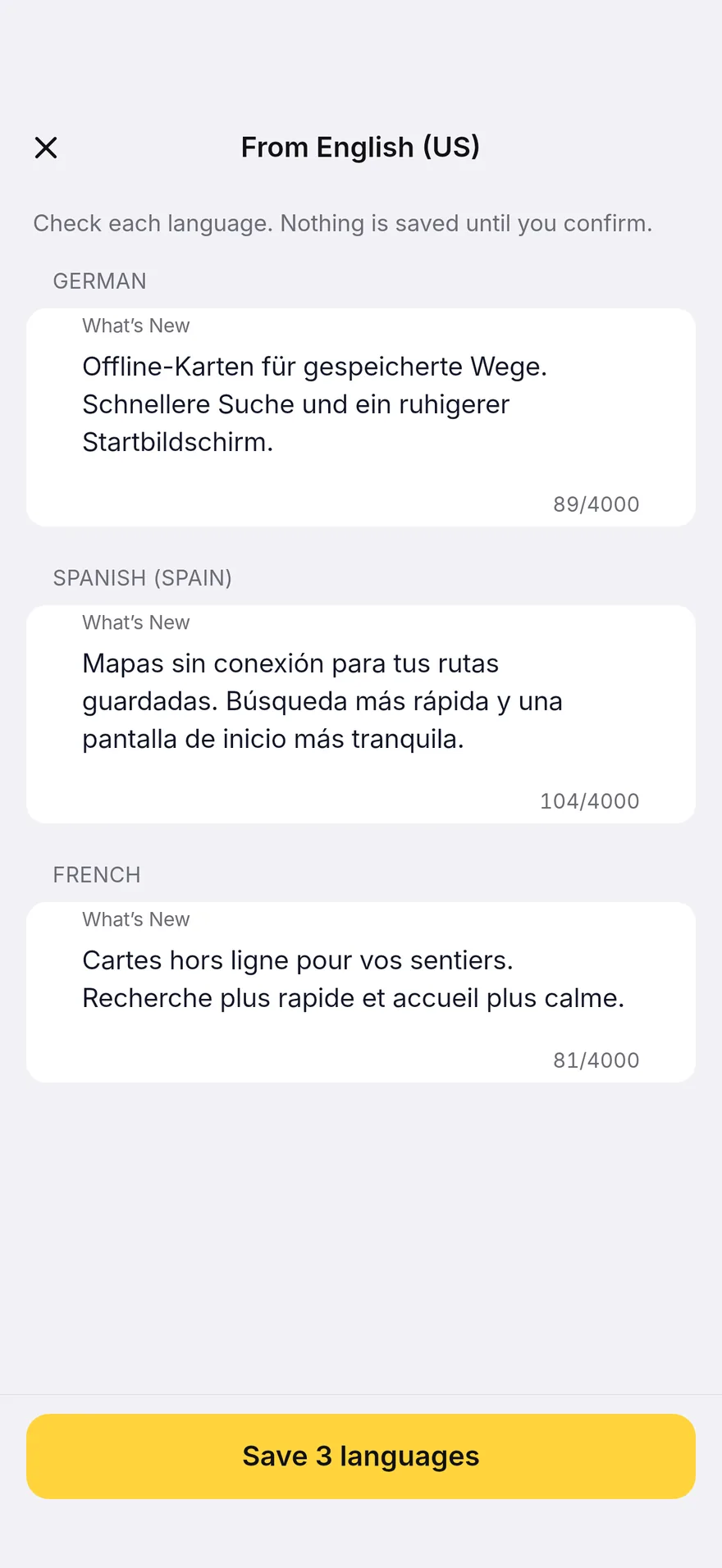
Storemast builds the draft-then-review steps into the places you edit text on your iPhone: What's New and Google Play release notes, the store listing (App Store description, keywords, promotional text, name and subtitle; Google Play title, short and full description) and TestFlight What to Test. Tap Translate from your base language and it drafts the other languages the version or listing has.
- Constraints go in with the text. Each field's character limit is passed along, names, version numbers and URLs are kept as they are, and keyword fields are asked for as terms people in that market search for rather than a word-for-word list.
- You review every language. Each result is shown editable with a character counter, and nothing is saved until you choose which languages to keep and confirm with Face ID. Then they're saved in one go.
- Who translates. Storemast Pro includes 60 AI credits a month, about one short text into every language or a full description into a dozen. If a request needs more than you have left, the languages that fit are translated and the rest are listed so you can do them later. Or add your own Anthropic API key in Settings for no monthly limit, billed to your Anthropic account.
It's a draft generator with the guardrails above, not a replacement for the native read in step 6. Details on the AI translation page.
Questions
Is machine translation allowed for App Store descriptions?
Apple doesn't forbid it. What matters is that the metadata is accurate and follows the App Review Guidelines in every language. A literal translation that misdescribes the app or reads badly hurts you either way, so have someone check it.
Does Google Play translate my listing automatically?
If you don't add your own translation for a language, Google Play may show users an automated translation by Google Translate, with a note saying so, or your default language. Google recommends adding your own translations.
Should I translate my App Store keywords?
No. Choose keywords per market. A dictionary translation of your English list misses the words people actually type there, and the 100-byte limit fits fewer characters in some scripts.
Which fields can I change without a new version?
On the App Store, promotional text can change at any time. Description, keywords and What's New belong to a version you're preparing; name and subtitle changes go live with a version too. On Google Play, listing changes don't need a new release, though Google may review them.
How much text is a full App Store translation?
Up to about 4,370 characters of listing per language (30 + 30 + 100 + 170 + 4,000), plus What's New for each update. Most descriptions are shorter than the limit.
Can I translate my store listing from my iPhone?
Yes. In Storemast, Translate from your base language drafts every other language of What's New, the store listing or What to Test with AI. You review and edit each one, then save them together with Face ID.